Testing with NVDA: a developer's working guide
NVDA is free, open source, and the screen reader most people say they use. How to set it up for testing, the keys that cover most of the job, browse mode versus focus mode, and how to read what it says instead of trying to listen.
If your team ships on Windows and has never run a screen reader against the product, NVDA removes every excuse. It is free. It installs in a minute. And it is, by a small margin, the screen reader more respondents to WebAIM's survey say they use than any other.
This is how we set it up and what we do with it. It is not a manual — the NVDA User Guide is that. It is the fifteen-minute pass that finds most of what is wrong.
What NVDA is
NonVisual Desktop Access, made by NV Access, a registered charity in Australia, with contributions from a large community. It is released under the GNU General Public License, costs nothing, and runs on 64-bit Windows 10 and 11 (and Windows Server from 2016). NV Access puts its user base at over 250,000 and ships it in more than 50 languages.
In WebAIM's tenth Screen Reader User Survey, 65.6% of respondents said they commonly use NVDA — the highest of any screen reader — and 37.7% named it as their primary one, second only to JAWS. If a blind user is on Windows, there is a very good chance NVDA is somewhere on the machine.
Set it up for testing, not for daily use
Five minutes of configuration is the difference between "I tried it and it talked at me" and a tool you can actually work with.
Install or portable. The installer is fine. The portable build runs from a folder without admin rights, which matters on locked-down corporate laptops.
Pick the modifier key. Most NVDA commands are NVDA + something, where
NVDA is the Insert key by default. Laptops often have no Insert key, and
numpad Insert is awkward to reach. In the welcome dialog, or under
Preferences → Settings → Keyboard, enable Use CapsLock as an NVDA modifier
key. Press CapsLock twice quickly when you genuinely want caps lock.
Open the Speech Viewer. NVDA menu (NVDA+N) → Tools → Speech Viewer.
This is the single most useful feature for a developer: a window that prints
everything NVDA says, as text, as it says it. You can read it, scroll it, and
copy an announcement verbatim into a bug ticket. It is the difference between
"it said something weird" and a reproducible defect. Leave it open. Turn the
synthesizer volume down if the voice is distracting, but do not turn speech
off — some behaviour only shows up in the timing.
Leave the reading settings alone. It is tempting to turn punctuation up so you hear every character, or to switch on the reporting of every attribute. Don't. Your users run something close to the defaults, and WebAIM's guidance is the same: leave the punctuation and symbol level at "some" and leave the Document Formatting options as they are. You are testing the product, not the screen reader.
Use the browser your users use. Chrome was the most common browser in the survey, with Edge and Firefox behind it. NVDA works well with all three. Test in Chrome first.
The two modes
This is the concept that trips up every developer on day one.
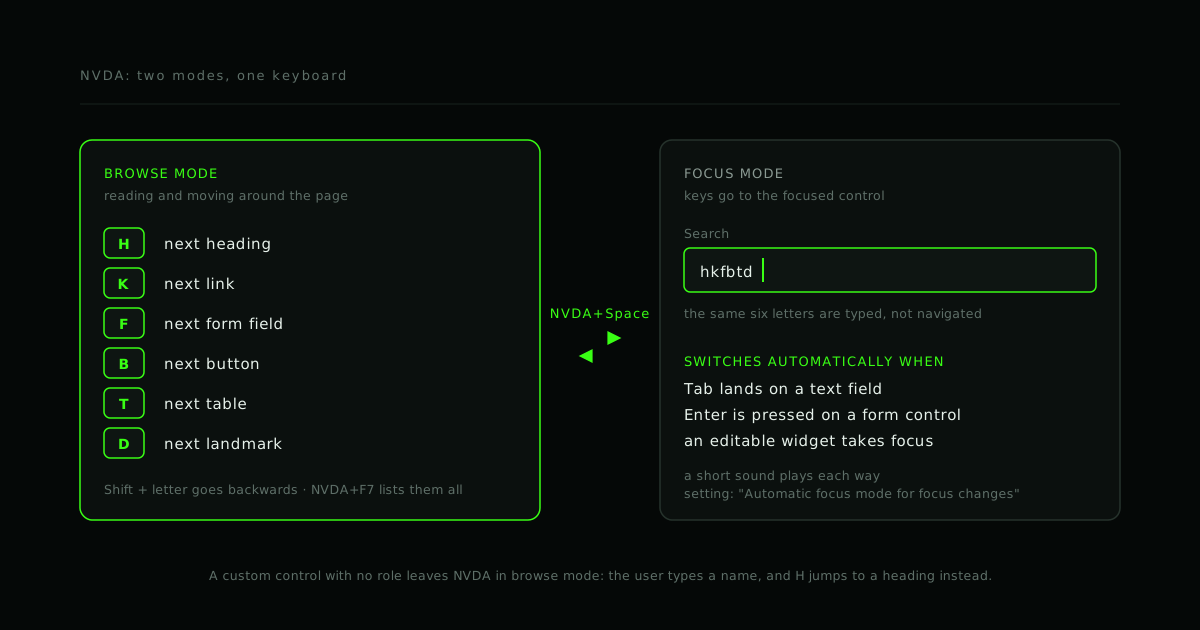
In browse mode, NVDA treats the page as a document. The arrow keys move
through the content line by line, and single letters are navigation commands:
H jumps to the next heading, K to the next link, F to the next form
field. You are reading.
In focus mode, keystrokes go straight to the focused control. Typing H
in a text field types an "h". Arrow keys move within a listbox or slider. You
are operating.
NVDA+Space switches between them. In practice you rarely press it, because
NVDA switches for you: Tab into a text field and it drops into focus mode with
a short sound; Tab out onto plain content and it returns to browse mode with a
different sound. The setting behind this is called Automatic focus mode for
focus changes, and it is on by default.
The developer consequence: the automatic switch is driven by the role your
control exposes. A real <input> triggers it. A div styled as an input,
with a keydown handler and no role, does not — NVDA stays in browse mode, the
user starts typing a name, and H sends them to the nearest heading instead.
When that happens the fix is in your markup, not in NVDA.
The keys that do most of the work
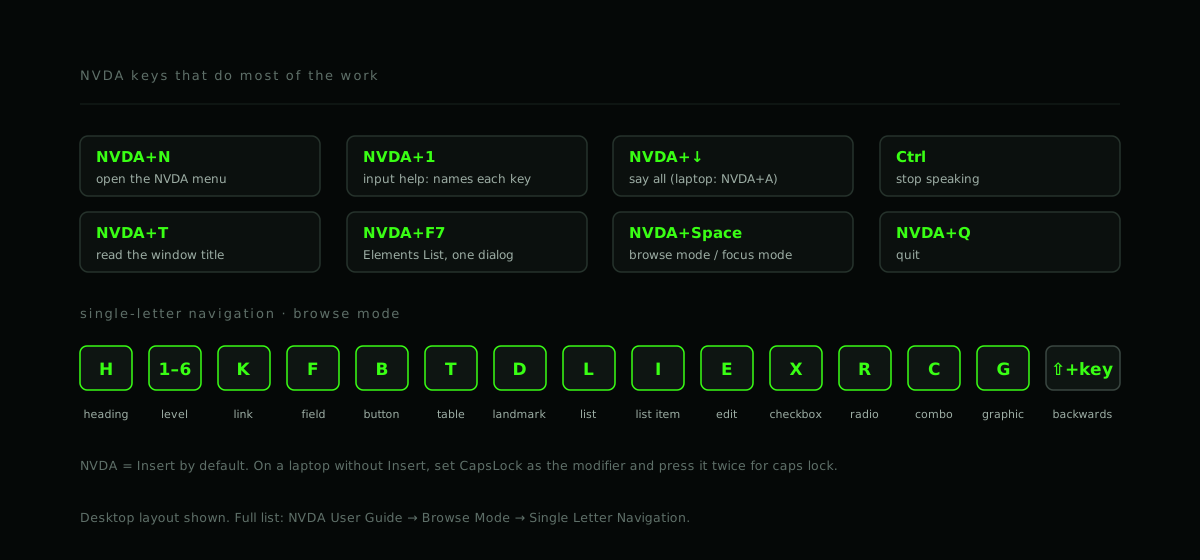
Desktop keyboard layout shown; the laptop layout changes a few (say all becomes
NVDA+A). NVDA+1 toggles input help, which speaks the name of any key you
press — useful for the first hour.
| Key | What it does |
|---|---|
NVDA+N |
Open the NVDA menu |
NVDA+1 |
Input help on/off — press any key to hear what it does |
NVDA+↓ |
Say all — read from here to the end |
Ctrl |
Stop speaking |
NVDA+↑ |
Read the current line again |
NVDA+T |
Read the window title |
NVDA+Tab |
Report what currently has focus |
NVDA+F7 |
Elements List — every heading, link, form field, button or landmark on the page, in one dialog |
NVDA+Space |
Toggle browse / focus mode |
NVDA+Q |
Quit |
Single-letter navigation, in browse mode. Shift + the same letter goes
backwards.
| Key | Jumps to next |
|---|---|
H / 1–6 |
Heading / heading of that level |
K |
Link |
F |
Form field |
B |
Button |
E |
Edit field |
X / R / C |
Checkbox / radio button / combo box |
T |
Table |
L / I |
List / list item |
D |
Landmark (main, nav, banner, named regions) |
G |
Graphic |
Two of these are the ones to remember when you move to JAWS: in NVDA D is a
landmark and R is a radio button. In JAWS, R is a landmark and A is a
radio button. The letters are close enough to be a nuisance.
The fifteen-minute pass
This is the routine. It does not replace a full audit; it finds the problems that would make a full audit embarrassing.
- Load the page,
Ctrl+Home,NVDA+↓. Listen (or read the Speech Viewer) as it reads the whole page top to bottom. You are checking that the reading order matches the visual order, that nothing is read twice, and that nothing important is silent. - Press
Hrepeatedly. The headings should read like an outline of the page. If the first heading is "Recently viewed" and the page title arrives atH-press number nine, the structure is wrong. NVDA+F7, switch to Links. Read the list. Every link name should make sense with no context around it. "Read more" twelve times is twelve identical links.- Press
Fthrough every form field. Each should announce its name and type — "Email, edit", "Remember me, checkbox, not checked". A bare "edit" is an unlabelled input. - Tab through the whole page. Is focus visible at every stop? Does it ever get stuck? Does it land on anything that is not actually interactive?
- Operate every control from the keyboard. Buttons with Enter and Space. Menus and tab lists with arrows. Escape closes what Enter opened.
- Trigger the dynamic behaviour. Submit the form with an error. Open the toast. Join the call. Did a live region announce it? Once? Did it announce so much that you wanted to turn it off?
- Open every modal. Focus should move into it, stay in it, and go back to
the trigger when it closes. Press
NVDA+Tabafter closing to confirm where focus actually went.
Write down the exact announcement from the Speech Viewer for anything wrong. That text is the bug report.
What NVDA is strict about
NVDA does comparatively little guessing. An input with no <label>, no
aria-label, no aria-labelledby and no title or placeholder is announced
as "edit" and nothing else. A div with a click handler is not announced as
anything, because it is not in the Tab order and has no role. A button whose
only content is an icon is "button".
This makes NVDA slightly harsher than JAWS, which tries harder to infer a name from nearby text. It also makes NVDA the better tool to build against: if it works in NVDA it is because the markup is right, not because the screen reader rescued it. Confirm with JAWS afterwards, because that is what many of your users will have — testing with JAWS covers what changes.
Things you will find in the first hour
- Icon-only buttons with no name. Mute, close, settings, send. Every one
needs
aria-labelor visually hidden text. - Placeholders used as labels. Browsers fall back to the placeholder for
the field's name, so it can sound acceptable in NVDA — but the hint vanishes
the moment the user types, and a placeholder is not a label for anyone who
can see the field either. Use a real
<label>. - Custom dropdowns built from
divs. No role, no keyboard handling, no focus mode. Use<select>, or implement the combobox pattern completely. - Focus lost after an action. The modal closes and focus falls to the top of the document. The user is now lost.
- A live region that fires on everything. Or none at all, so status changes happen silently.
- Headings chosen for size, not structure.
<h4>because it looked right.
Every one of these is a markup fix, and every one of them is invisible in a screenshot.
Related: accessibility-aware development for why we build this way, and testing with JAWS for the screen reader your enterprise users are most likely to have.
- #Accessibility
- #NVDA
- #Screen readers
- #Testing
- #Windows
Working on this?
We build accessible products and audit existing ones.
If your product has never been through a screen reader, that is the place to start. We test against JAWS, NVDA and VoiceOver, fix in priority order, and leave your team able to check it stays fixed.