Testing with JAWS: the screen reader your enterprise users have
JAWS is commercial, Windows-only, and still the screen reader most people name as their primary one. Where it differs from NVDA — automatic Forms Mode, more repair, different quick keys — why the 40-minute demo is not a testing licence, and how to run a JAWS pass that catches what NVDA let through.
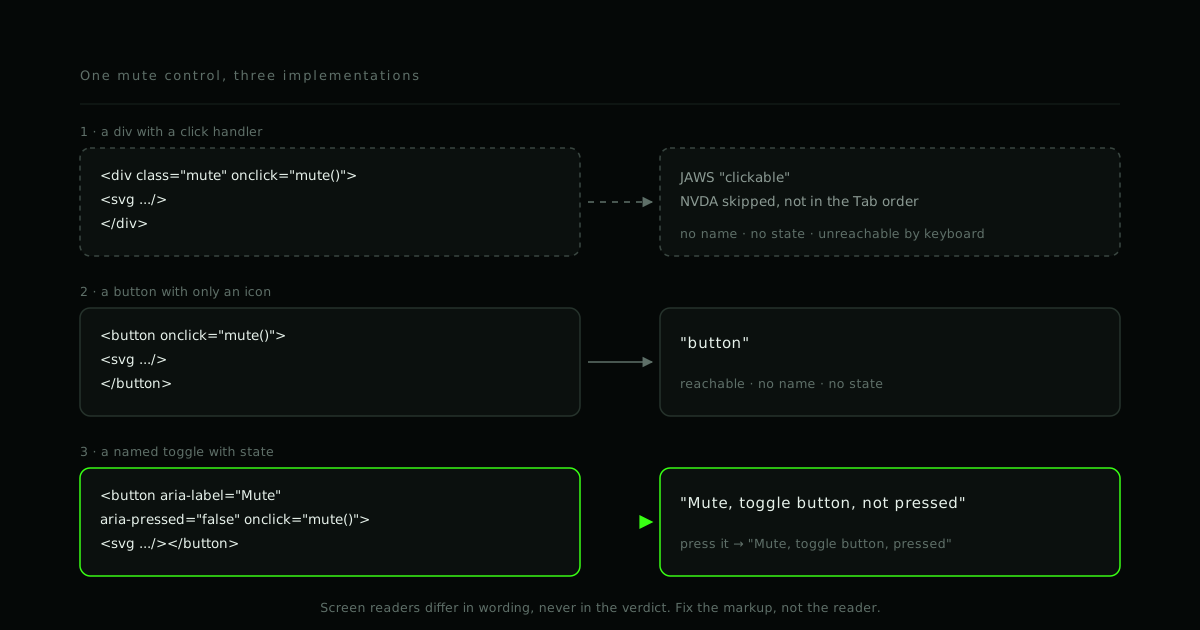
Most teams that test with a screen reader at all test with NVDA, because it is free and it is right there. Then the product ships to a bank, a hospital, a university or a government department, and the first accessibility complaint comes from someone running JAWS.
Not because NVDA lied. Because JAWS is a different program with different habits, and the people most likely to be using it are the ones whose employer bought and installed their assistive technology for them.
What JAWS is
Job Access With Speech, from Freedom Scientific, now a brand of Vispero. It is commercial, Windows-only, and the longest-established of the major screen readers — it dates back to the DOS era. It is deeply scriptable, which is a large part of why enterprises standardise on it: JAWS scripts can make a badly-built internal application usable in ways a generic screen reader cannot.
In WebAIM's tenth Screen Reader User Survey, 40.5% of respondents named JAWS as their primary desktop screen reader — the highest of any — and 60.5% said they commonly use it. Chrome was the most common browser overall, and WebAIM's own JAWS guidance notes Chrome as the most common pairing among JAWS users, with Firefox behind it.
Getting a copy
Freedom Scientific publishes a demonstration mode: JAWS runs for forty minutes without a licence, after which the machine has to be rebooted for another forty. For a first listen to how it sounds, that is fine.
For professional testing it is not, and not only because of the reboots. WebAIM's JAWS evaluation guide points out that the terms of the trial specifically prohibit using it to test web pages. If accessibility testing is part of what you deliver, buy a licence. Freedom Scientific sells annual home licences alongside the professional one; check the current terms for which applies to you. We treat it as a tool cost, the same as a device lab.
The JAWS key and Settings Center
JAWS commands are Insert + something, exactly like NVDA. The manual calls it
the JAWS key. On a laptop without Insert you can make CapsLock the JAWS key:
Insert+F2 lists the JAWS managers; choose Settings Center, then Keyboard →
General → JAWS Key for Desktop Layout. Pressing CapsLock twice quickly still
toggles caps lock.
Settings Center is also where verbosity lives. JAWS can be tuned to say much less about each control than it does out of the box. Test at the defaults. Your users mostly run them.
Virtual PC Cursor and Forms Mode
JAWS has the same two-mode model as NVDA, with different names and one important difference in feel.
The Virtual PC Cursor is JAWS reading the page as a document: arrows move through content, and single letters are navigation quick keys. Forms Mode passes your keystrokes to the control that has focus so you can type or pick an option.
JAWS switches automatically as you Tab, based on what has focus: a text field
or a widget that needs the keyboard turns Forms Mode on, and you hear a
higher-pitched tone; leaving it returns you to the Virtual Cursor with a lower
one. You can force it — Enter on a form control enters Forms Mode, Numpad Plus leaves it — and Insert+Z turns the Virtual Cursor off entirely, which
is mostly useful for web applications that behave more like desktop software.
Those tones are diagnostic. Tab through your product and listen. A custom combobox that does not trigger the Forms Mode tone is a combobox JAWS does not recognise as one, and its users will find single letters jumping around the page instead of filtering the list.
The keys that matter
| Key | What it does |
|---|---|
Insert+↓ |
Say all |
Ctrl |
Stop speaking |
Insert+↑ |
Read the current line |
Insert+T |
Read the window title |
Insert+F6 |
Headings List |
Insert+F7 |
Links List |
Insert+F5 |
Form Fields List |
Insert+F3 |
Virtual HTML Features — pick any element type and list it |
Ctrl+Insert + a quick key |
List every element of that type (e.g. Ctrl+Insert+B for buttons) |
Insert+F1 |
Help for the element under the cursor |
Insert+Z |
Virtual PC Cursor on/off |
Insert+Space, then H |
Speech History — what JAWS said, as text |
Insert+F2 |
The JAWS managers, including Settings Center |
Speech History is the JAWS equivalent of NVDA's Speech Viewer, and it is what
you copy into a ticket. It is a layered command: press Insert+Space, release,
then press H.
Navigation quick keys, with the Virtual PC Cursor on. Shift reverses
direction.
| Key | Jumps to next |
|---|---|
H / 1–6 |
Heading / heading of that level |
B |
Button |
F |
Form field |
E / C / X / A |
Edit box / combo box / checkbox / radio button |
T |
Table (then Ctrl+Alt+arrows to move between cells) |
L / I |
List / list item |
R |
Landmark or region |
Q |
Main region |
G |
Graphic |
U / V |
Unvisited / visited link |
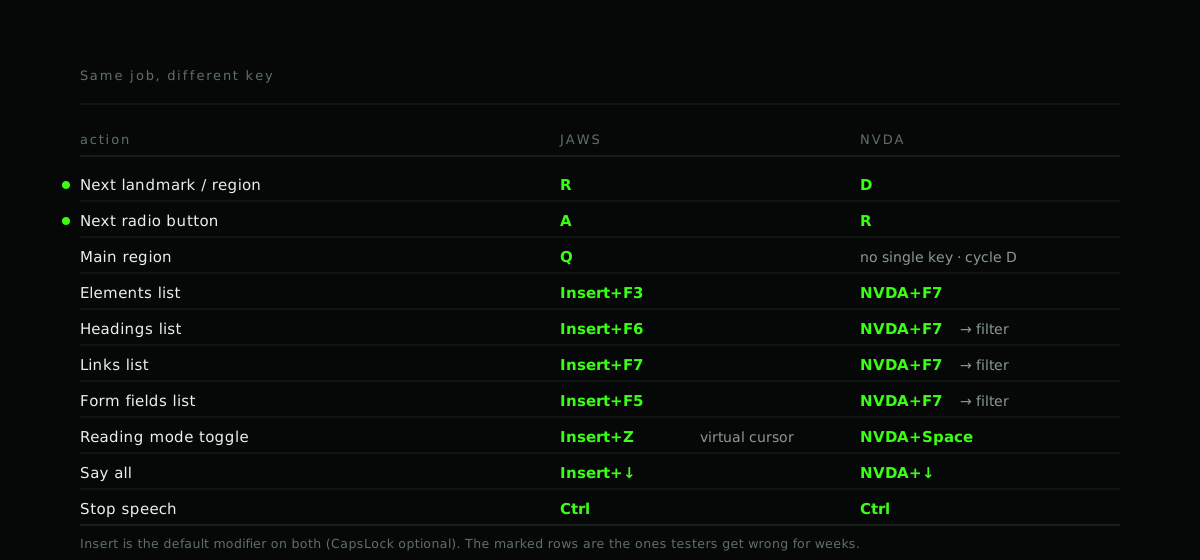
The two that bite: R is a landmark in JAWS and a radio button in NVDA;
A is a radio button in JAWS and D is a landmark in NVDA. Testers who
switch between them press the wrong one for weeks.
Where JAWS and NVDA disagree
The wording of an announcement differs constantly between the two and almost never matters. These differences do.
JAWS repairs more. Given an input with no label, JAWS will often infer a name from text near it — the visible label that was never associated with the field. NVDA announces "edit". So a form can sound acceptable in JAWS and be broken in NVDA, and the JAWS result is the misleading one: the markup is still wrong, and the guess will be wrong somewhere else. Build against NVDA; confirm in JAWS.
JAWS says "clickable". When it meets an element with a click handler that
is not a link or a button, JAWS announces it as clickable. This is a gift to
testers: say all through a page built from divs and every "clickable" is a
control that should have been a <button>. NVDA, which does not announce
this, simply skips them.
Forms Mode tones expose role problems in a way NVDA's quieter switching does not. A widget that never triggers the tone, or triggers it where there is nothing to type, has the wrong role.
Scripts change behaviour on known applications. JAWS ships scripts for common software and enterprises write their own. If a client tells you JAWS behaves differently on their machines than on yours, ask what scripts and settings they run before you assume a bug.
The JAWS pass
Run the same routine as the NVDA pass — say all from the top, headings, links, form fields, Tab through everything, operate everything, trigger every dynamic change, open every modal — then add three JAWS-specific checks.
- Listen to the Forms Mode tones as you Tab. Every text field and custom widget should switch in; plain buttons and links should not. Map any surprise to the control that caused it.
Insert+F3and look at the regions list. Your<main>,<nav>andaria-labelled regions should appear with sensible names. If the list is empty or shows three unnamed "region" entries, users cannot jump around the page.- Say all, and count the "clickable"s. Each one is a
divorspanwith a handler. Turn them into buttons or links.
Copy the announcements from Speech History into the findings. A sentence of what JAWS actually said is worth more than a paragraph describing it.
Which to test with, in what order
For a web product on Windows:
- NVDA first, because it is free, strict, and what most respondents use. If it works in NVDA the markup is right.
- JAWS second, because it is what most respondents call their primary reader and what employer-provisioned machines tend to have. It will confirm the fix and occasionally reveal a Forms Mode or region problem NVDA was quiet about.
- VoiceOver on macOS and iOS if you have Apple users, which you do.
Two screen readers for one afternoon a sprint finds most of what an external audit would, at a fraction of the cost and before a customer does.
Related: accessibility-aware development and testing with NVDA.
- #Accessibility
- #JAWS
- #Screen readers
- #Testing
- #Windows
Working on this?
We build accessible products and audit existing ones.
If your product has never been through a screen reader, that is the place to start. We test against JAWS, NVDA and VoiceOver, fix in priority order, and leave your team able to check it stays fixed.